
SQL Server 2025: AI With Your Data at No Ongoing Cost
by Ginger Grant | August 28, 2026
SQL Server 2025 lets you ground a generative AI model with your own data, running full retrieval-augmented generation (RAG) entirely on-prem, at no ongoing cost and with no data ever leaving your network. That solves a real problem: standard database queries can't tell that “quiet” and “low noise” mean the same thing, so anyone who doesn't know the exact schema or wording is locked out of the data. Most teams also assume that grounding an AI model with their data means shipping sensitive data to the cloud and paying for it indefinitely. SQL Server 2025 removes both objections.
Grounding AI With Data From Your Database
In SQL Server 2025, Microsoft has created the ability to create vector indices on your data, which can be stored locally for use by a local AI model to keep your AI analysis completely on-site. For those who want to use the latest models, you can, of course, connect your database to the cloud and use any of the hundreds of models from Microsoft, OpenAI, Anthropic, Meta, Cohere, Mistral, xAI, DeepSeek and many others. This gives you the choice, unlike with many other AI services, to control cost and locality. If you are looking for a low-cost solution, you can use either the ONNX interface or models that can be deployed locally using the Ollama AI server, which provides AI without needing to access a data center. ONNX is an open-source standard that lets you train a model in one framework and run it in another.
Implementing RAG in SQL Server 2025
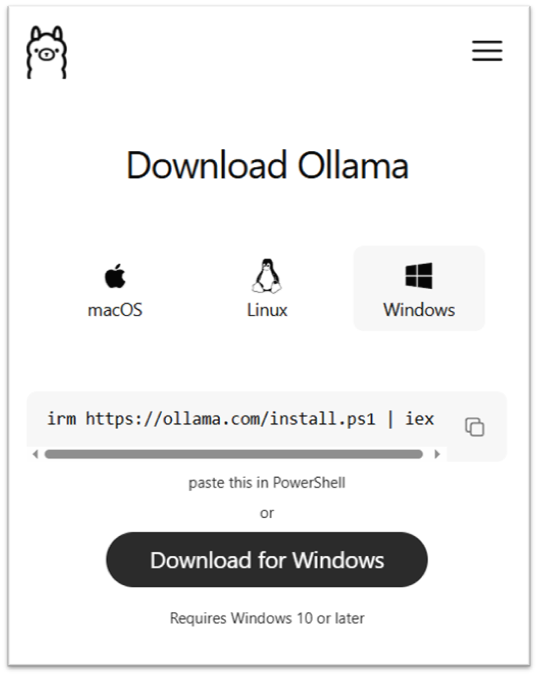
The process for integrating AI into your database running locally is surprisingly simple, and unlike most AI, it won't cost you a thing to implement. This article walks through the steps to implement Ollama, an open-source generative AI service. Once you download and install Ollama, you can install models from its library, which has hundreds of options. To install Ollama, open PowerShell as administrator, then run the install script for the version of Ollama you want to use. For Windows, the URL is:
irm https://ollama.com/install.ps1 | iex
The installation will take about five minutes. This install is just for the Ollama service. To install a model, pick one from the list. This article provides details on installing models in PowerShell.
The REST AI service lets you communicate with the models using HTTP. This is an issue for SQL Server, since it only allows secure connections, so you'll need to download Caddy, which includes a reverse proxy that sits in front of the application and routes HTTP to HTTPS. You do not need to install Caddy, but you do need to download the executable and create a configuration file. The configuration file contains this content and is named caddyfile, with no file extension:
{
	auto_https disable_redirects
}

https://localhost:8080 {
	tls internal
	reverse_proxy 127.0.0.1:11434
}
You may need to change two things in your configuration file. The port number after localhost is a port that isn't being used by SQL Server—I picked 8080—and the number after the colon is the port Ollama is listening on. Once these items are configured, the next step is to implement AI in SQL Server. The best way to confirm you have the right ports is to ask an AI agent that has access to your computer, like GitHub Copilot in VS Code, which ports to use.
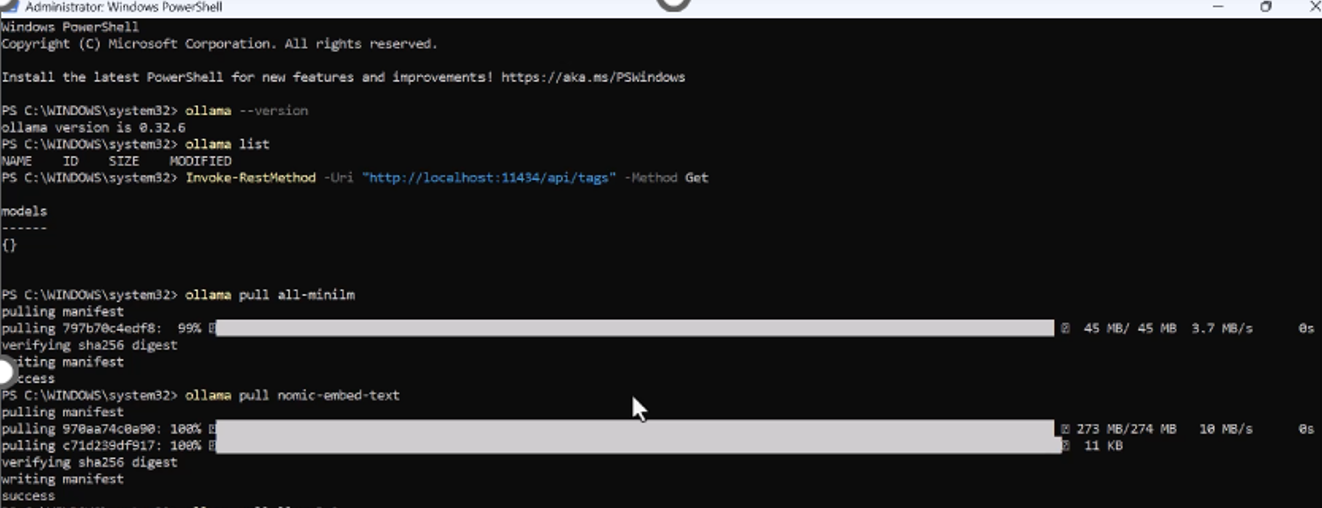
The next step is to download a model. Ollama is an AI server container, not an AI model, so you'll need to install one. There are hundreds available on the site. To add a model, use this command from within PowerShell:
ollama pull <modelname>
You can see in the example below that I added the models all-minilm and nomic-embed-text. I installed two so I could compare the performance of different models. You will need to install at least one.
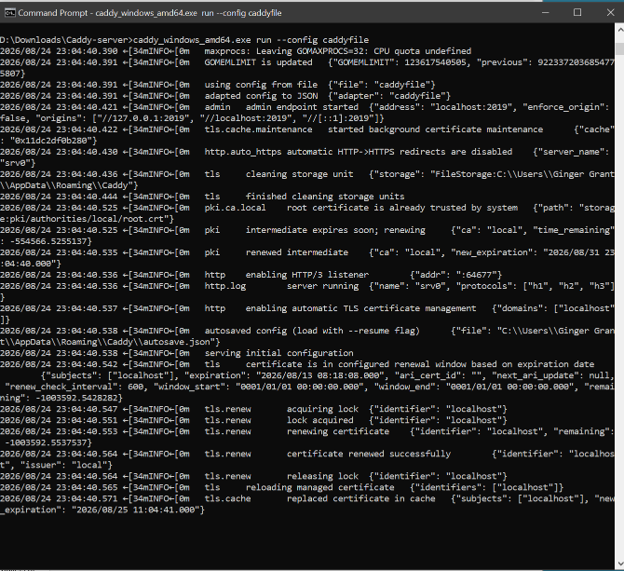
To run the Caddy server, use a command prompt from the subdirectory where you downloaded Caddy and run:
caddy_windows_amd64.exe run --config caddyfile
Your output will look something like this:
With Caddy running, you can now configure SQL Server.
SQL Server AI Modifications
Here are the steps you need to run in SQL Server to use Ollama. Run these in a query window one at a time.
- Run this code to enable SQL Server to connect to the Ollama server:
EXECUTE sp_configure 'external rest endpoint enabled', 1;
RECONFIGURE WITH OVERRIDE;
GO
- Enable some SQL Server features that are still in preview, including the ability to create an AI model (a later step):
ALTER DATABASE SCOPED CONFIGURATION
SET PREVIEW_FEATURES = ON;
GO
- To confirm the ports are configured correctly, test the endpoint you just enabled. The port after
localhostshould be one that isn't in use and must match thelocalhost:portvalue in the caddyfile you created earlier.
DECLARE @ReturnCode int;
DECLARE @Response nvarchar(max);

EXEC @ReturnCode = sys.sp_invoke_external_rest_endpoint
  @method  = 'GET',
  @url     = 'https://localhost:8080/api/tags',
  @headers = N'{"Accept":"application/json"}',
  @response = @Response OUTPUT;
SELECT @ReturnCode AS ReturnCode,
        @Response as Response;
When the endpoint is working correctly, you'll get this message:
| ReturnCode | Response |
|---|---|
| 0 | {“response”:{“status”:{“http”:{“code”:200,"descr…. |
CREATE EXTERNAL MODEL LocalOllama_nomic
WITH (
    LOCATION   = 'https://localhost:8080/api/embed',
    API_FORMAT = 'Ollama',
    MODEL_TYPE = EMBEDDINGS,
    MODEL      = 'nomic-embed-text'
);
GO
This model references a model installed earlier: nomic-embed-text.
- The embeddings are loaded into the
Producttable, which has a column with a data type ofVECTOR(768), like this one:
CREATE TABLE dbo.Product
(
    ProductID   	INT IDENTITY(1,1) PRIMARY KEY,
    ProductCategoryID   INT NOT NULL,
    Description 	NVARCHAR(MAX)  NOT NULL,
    UnitPrice	        DECIMAL(10,0) NOT NULL,
    Embedding   	VECTOR(768)    NULL
);
GO
To add the vectors to the table, use this command:
UPDATE dbo.Product
SET Embedding = AI_GENERATE_EMBEDDINGS(Description USE MODEL LocalOllama_nomic)
WHERE Embedding IS NULL;
This takes a little while to complete.
- To improve the results when querying the data, create a vector index on the table:
CREATE VECTOR INDEX IX_Products_Embedding
    ON dbo.Product (Embedding)
    WITH (METRIC = 'cosine', TYPE = 'DiskANN');
GO
- Use the AI model to find a camera in the list of products with this SQL query, which finds the vector closest to the value “camera”:
DECLARE @qvl VECTOR(768) = AI_GENERATE_EMBEDDINGS(N'camera'
 USE MODEL LocalOllama_nomic);

SELECT l.productid, l.productCategoryID, l.unitprice, l.description
FROM VECTOR_SEARCH(TABLE = dbo.Product AS l, COLUMN = Embedding, SIMILAR_TO = @qvl, METRIC = 'cosine', Top_N = 1) AS s
ORDER BY s.distance;
Here are the results:
| productid | productCategoryID | unitprice | description |
|---|---|---|---|
| 8 | 4 | 60 | Webcam Full HD 1080p |
You can see that the AI knows a webcam is a camera — something SQL Server couldn't do with a standard query.
This is a game changer, and it's something you'll want to give people using your database so they can get answers from their own data.