


How to Validate Microsoft Fabric CI/CD Deployments Using SQL Server 2025 and SSMS 22
by Ginger Grant | July 31, 2026
SQL Server 2025 and SQL Server Management Studio (SSMS) 22 finally solve a problem that's dogged Fabric migrations: moving a lakehouse, warehouse, or SQL database from Dev to Test to Production moves the object, but not what's inside it — tables, views, and metadata get left behind. As organizations move to processes that support continuous integration and continuous deployment (CI/CD), they need to be able to create quality checks to ensure that deployments are complete. SSMS includes a feature that will assist in validating releases.
Ensuring successful migrations across these environments can be a bit of a headache for Microsoft Fabric. Migrating code works; after all, the standard migration tools work well. With lakehouses, warehouses and SQL database, there are more things to move than the objects themselves, as they contain structures.
When you migrate to a different workspace in Fabric, the tools move the objects, not the elements stored inside them. If I migrate a lakehouse from Dev to Test, the lakehouse arrives, but a table that my pipeline expects to load data into may not be there, because the migration tools don’t move tables or metadata; they move the object — the lakehouse.
Teams typically migrate their code environments one of two ways: through deployment pipelines with variable libraries, or directly by referencing the git libraries in each workspace. Neither approach will move a table for you. If you want that table created automatically as part of your DevOps process, or you want to make sure you are not missing a view that you are referencing in code, tools inside of SQL Server 2025 and SSMS 22 can help.
Using SSMS 22 and SQL Server 2025 with Fabric
Fabric is built to work with SSMS. Using its SQL endpoints, Fabric lakehouses, warehouses and SQL databases can all access SSMS. This means that new features of SSMS studio can be used with Fabric data stores using SSMS’ database projects and database compares. Comparing two different versions of the databases reveals structural differences between the tables, views, and stored procedures in each lakehouse. Unfortunately, there’s no built-in comparison for metadata, so that must be handled separately. The database compares can be used to generate automated SQL scripts to create any missing elements in the databases.
Steps to Validate Differences Between Lakehouses in Different Workspaces
When migrating through from Dev to Test, the contents of the migrated lakehouses should be the same. Current methods of migration, including migrating with deployment pipelines or using pull requests in git move the objects from dev to test, so you will have the same number of objects in both workspaces. If you have three lakehouses in the dev workspace, you will have three in the test workspace after the deployment process is completed. That part works well. But if you want to ensure that you have the same number of tables or columns in each lakehouse, neither migration process will do that. When migrating Fabric workspace from development to test with a deployment pipeline or through a pull request and git merge, after the process completes, the Fabric source control update is processed, adding any new code to the Test workspace. At this point, when comparing the two environments they will look the same, but nothing ensures either process includes every change to the tables, views and stored procedures in the lakehouse, warehouse or SQL database in Fabric.
Process to Compare Data Objects
Open both lakehouses in SSMS using their SQL endpoints. This opens all of the lakehouses you happen to have in the workspace; here I only have one. In the figure you can see that I compared Migration_Bronze[Dev] against Migration_Bronze[Test].
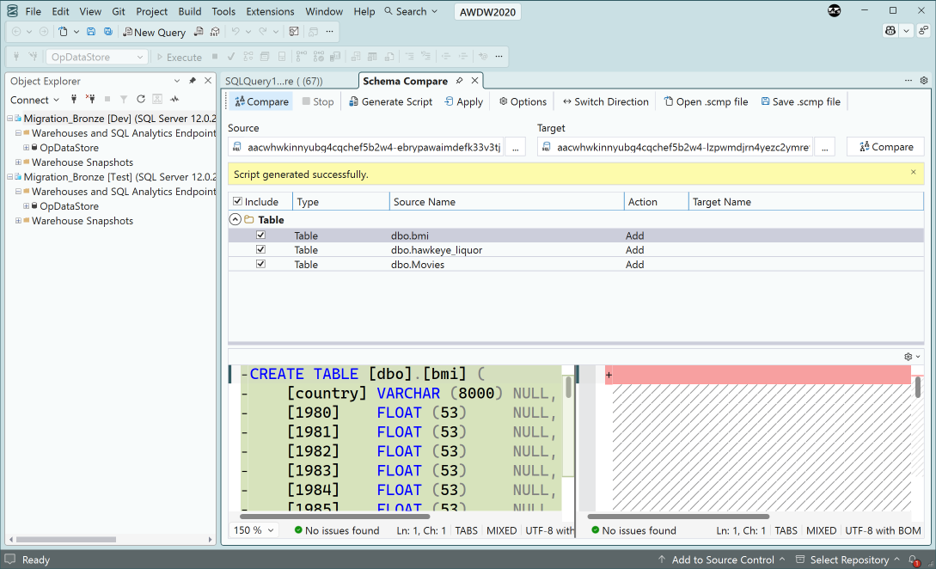
To run this compare, go to the Tools menu and select Schema Compare (Preview). This will show the differences between the two items. The Generate Script icon at the top of the screen creates a script which can be run to add the tables, views or stored procedure. This script can be used to create a process in Fabric to add any missing items. If you are using a warehouse or SQL database in Fabric you can run that script directly. If you are using a lakehouse, you need to convert the script to Spark SQL first, since lakehouses don’t support running SQL scripts directly.
Comparing Dev and Test ensures that the code you migrate contains not just the object, but the SQL elements inside of it. This issue had not been solved before this release of SSMS and now Microsoft has resolved the problem.